11
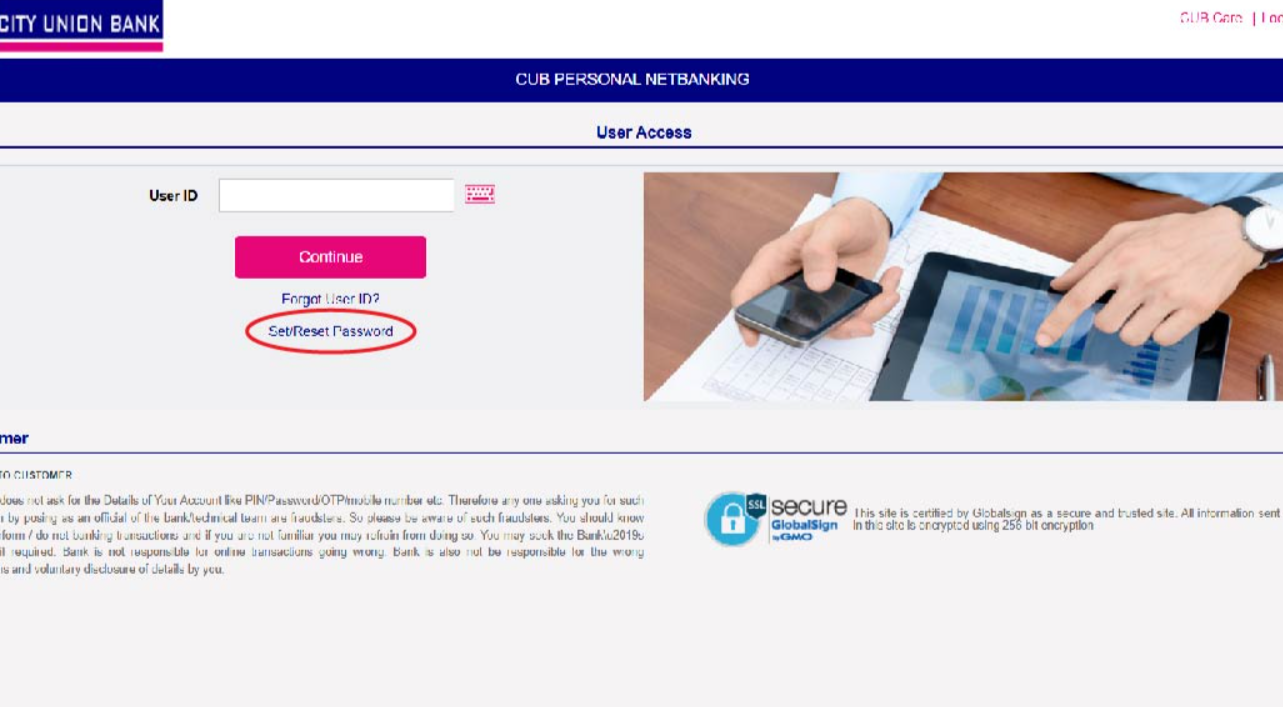
CUB Net Banking is City Union Bank’s internet banking service. Customers use it to check balances, transfer money, pay bills, manage deposits and handle other banking tasks online, around the clock. City Union Bank has moved its corporate website to cityunionbank.bank.in, and the bank’s FAQ lists the net banking login at onlinebanking.cub.bank.in. Older guides still cite cityunionbank.com and onlinecub.net, so always check which link the bank’s own site shows.
| Particular | Details |
|---|---|
| Service | CUB Net Banking (Internet Banking) |
| Bank | City Union Bank Limited (CUB) |
| Official website | https://www.cityunionbank.bank.in |
| Net banking login (per bank FAQ) | https://onlinebanking.cub.bank.in |
| Variants | Personal Banking and Corporate Banking |
| Login credentials | User ID (Customer ID), login password, and a transaction password where applicable |
| Fund transfers | Within CUB and to other banks; IMPS, NEFT, RTGS reported |
| Charges | Bank FAQ says net banking is currently free (verify the current position) |
| Customer care | 1800 120 5000 (as listed by BankBazaar) |
| customercare@cityunionbank.in (also shown as customercare@cityunionbank.bank.in) | |
| Fraud reporting | 044-7122-5000 (as listed by Paisabazaar) |
| Block net banking by SMS | “BLOCK (user ID)” to 9281056789 from your registered number |
It’s an online platform that lets City Union Bank customers manage accounts without going to a branch. You can see all accounts held under one login, make transfers, and handle everyday services from a computer or phone. CUB also offers a mobile banking app for similar tasks.
Registration, online
Registration, through a branch
On first login you are required to change the bank-issued passwords to ones you choose.
Login
The bank’s FAQ also mentions a Get Instant Password option that lets you generate your own password online without waiting for a mailer. If these fail, contact your branch or customer care.
Transfer limits apply for security, and you can view or adjust limits in your net banking settings. NEFT and RTGS follow RBI timings and rules, so check the current ones.
Keep your account or debit card number ready when calling. If you change your mobile number, tell the bank right away.
CUB Net Banking gives City Union Bank customers 24/7 access to accounts, transfers, bill payments and deposits. Register through the bank’s official site or a branch, change your passwords at first login, avoid public computers, and contact the bank directly through verified channels if anything seems wrong.
Is CUB Net Banking free?
The bank’s FAQ states it is currently free of charge. Check the bank’s website for any change.
What is my User ID?
It’s the Customer Identification number you receive when you enrol.
Can I see all my accounts under one login?
Yes, accounts at different branches can be accessed under one login, according to the bank’s FAQ.
I forgot my password. What now?
Use Forgot Password or Get Instant Password on the login page, or contact your branch.
Should I use net banking from a browsing centre?
No. The bank advises against it.
How do I block my net banking?
SMS BLOCK and your user ID to 9281056789 from your registered mobile number, or call customer care.
What if I change my mobile number?
Inform the bank and re-register, otherwise you may lose access to OTP-based services.
Are there transfer limits?
Yes. They are set for security and can be viewed in your settings.
This content is for general information only and is not financial advice. We are not affiliated with City Union Bank, the RBI or any payment system. Website addresses, charges, transfer limits, contact numbers and procedures may change, and some details here come from third-party sources, so please verify them on the bank’s official website, cityunionbank.bank.in, or at your branch. Never share your user ID, password, transaction password, OTP or card details with anyone, and the bank will not ask for them by phone, SMS or email. Use only the official website and app. We accept no liability for loss or inconvenience arising from use of this information.