 11
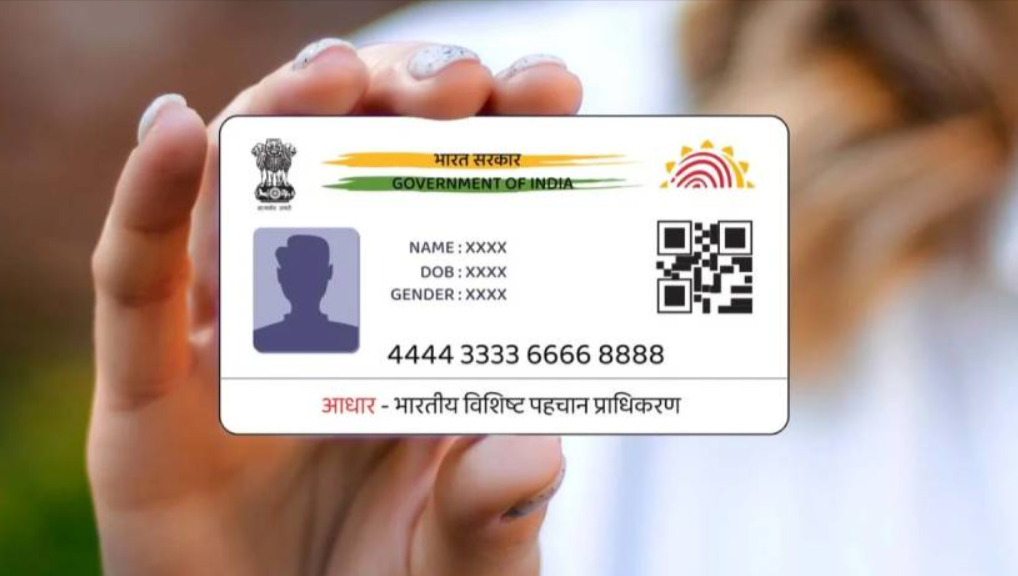
e-Aadhaar is the digitally signed, password-protected PDF version of your Aadhaar issued by UIDAI (Unique Identification Authority of India). It carries the same details as the physical card (name, Aadhaar number, photo, date of birth, gender, address and a QR code) and is accepted as valid proof of identity for KYC and for banking and government services. You can also download a Masked Aadhaar, which shows only the last four digits, when you don’t want to share your full number.
How you get it: download it from the myAadhaar portal (myaadhaar.uidai.gov.in), the mAadhaar app, DigiLocker or UMANG. You can use your 12-digit Aadhaar number, your 16-digit Virtual ID (VID) or your 28-digit Enrolment ID, and verify with an OTP sent to the mobile number registered with Aadhaar. If you’ve lost your number or EID, you can retrieve it with your name and registered mobile or email, then download as usual.
Password: the PDF opens with the first four letters of your name in capitals (as printed on Aadhaar) plus your birth year, for example SUNI1992.
Key limitation: the online download cannot be completed without a registered mobile number. If yours isn’t linked or has changed, you’ll need to update it at an Aadhaar Enrolment Centre first.
e-Aadhaar is the digitally signed, password-protected PDF version of your Aadhaar issued by UIDAI. It is legally valid in the same way as the physical card or letter and can be used for KYC, bank and government services. It carries your name, Aadhaar number, photo, date of birth, gender, address and a QR code. You can also get a Masked Aadhaar, which hides the first 8 digits so only the last 4 show, for situations where you don’t want to share the full number.
What you need: your Aadhaar number, 16-digit Virtual ID (VID) or 28-digit Enrolment ID (EID), and a mobile number registered with Aadhaar to receive the OTP.
PDF password: the first four letters of your name in capital letters (as printed on Aadhaar) + your birth year (YYYY). For example, “Sunita Ghosh” born in 1992 gives SUNI1992.
Your name and date of birth can’t download the card directly. They help you retrieve a lost Aadhaar number or Enrolment ID, which you then use to download.
A VID is a temporary, revocable 16-digit number linked to your Aadhaar, useful for privacy.
DigiLocker needs the mobile number to be registered with Aadhaar.
Not possible online. UIDAI sends the OTP only to the registered mobile, and without it the download cannot be completed. Your options:
If you only need to confirm your number, ask the centre staff to print your Aadhaar for you.
You can download your e-Aadhaar in a few minutes through the UIDAI website, mAadhaar, DigiLocker or UMANG, as long as your mobile number is registered. Keep the registered number current, prefer the masked version when full details aren’t needed, and download only from official sources.
Is e-Aadhaar as valid as the physical card?
Yes, a digitally signed e-Aadhaar is valid as proof of identity, as UIDAI states.
What is the password for the e-Aadhaar PDF?
First four capital letters of your name + birth year (YYYY).
What is a masked Aadhaar?
A copy that shows only the last 4 digits of your Aadhaar number.
I lost my Aadhaar number or EID. What now?
Use the retrieve option with your name and registered mobile or email.
Can I download without OTP?
No.
Is it free?
Downloading is free on official channels. Beware of cyber cafes or sites that charge.
What if my name’s first letters differ from what I use?
Use the name exactly as printed on your Aadhaar.
Can I use a PDF downloaded from DigiLocker?
Yes, it’s an authentic copy from UIDAI through DigiLocker.
UIDAI contact?
Toll-free 1947 and help@uidai.gov.in.
This content is for general information only. We are not affiliated with UIDAI, DigiLocker, UMANG or the Government of India. Procedures, links, fees and policies may change, and some details come from third-party sources, so please verify them on uidai.gov.in and myaadhaar.uidai.gov.in. Never share your Aadhaar OTP, VID or the PDF password with anyone, avoid downloading Aadhaar on public or shared computers, and delete copies you no longer need. Use only official websites and apps, and be cautious of agents or sites asking for money to “download” Aadhaar. We accept no liability for loss or inconvenience arising from use of this information.